QR Codes
Batch add QR codes to hundreds of PDFs
Stamp a unique QR code on every page or every file — Bates numbers, document IDs, verification links, or spreadsheet values. Vector-sharp, checked for print size, applied to the whole batch in one pass.
Download Complimentary TrialWhat it does
A code on every page that knows which file and page it is
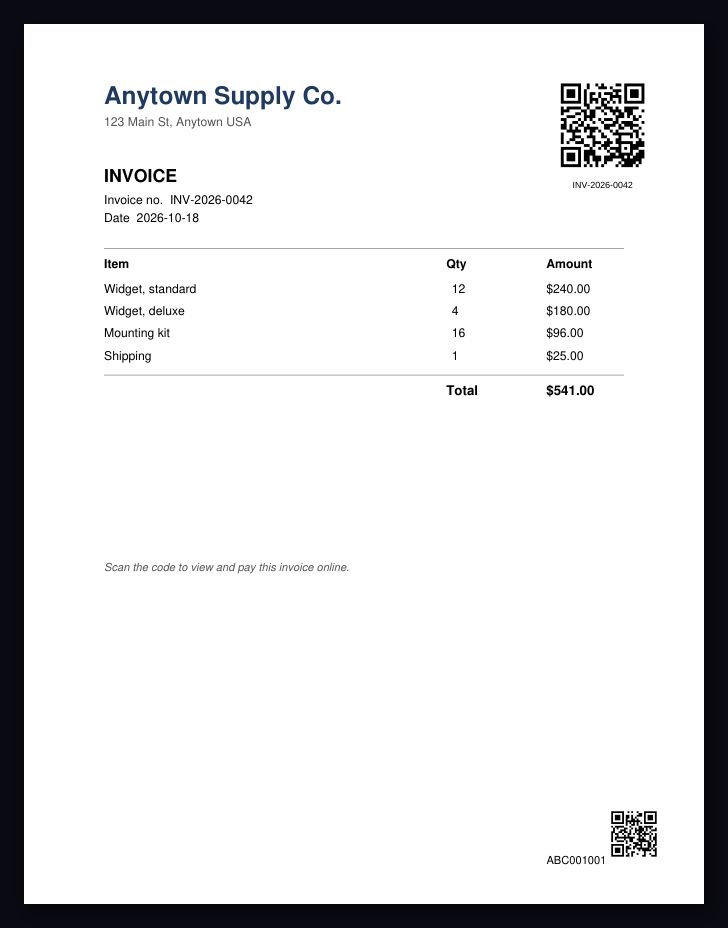
Type what the code should contain once — a link, an ID, or text — and use tokens for the parts that change: {FileName}, {FileNameNoExt}, {Page}, {PageCount}, {Date}, or {InputSha256} (a fingerprint of the original file). https://example.com/docs/{FileNameNoExt}?page={Page} gives every page of every file its own link.
Before anything is written, the app checks that the content fits and that the code will still scan at the size you picked, and tells you the minimum size if it won't. Codes land upright in the corner you chose even on rotated or cropped pages.
How it works
Three steps
1. Load your PDFs
Drop files or whole folders on the Dashboard — hundreds at a time, subfolders included.
2. Describe the code
Open QR Codes, enter the content (with tokens), pick position and size. The live check shows whether it will scan.
3. Add QR Codes
One click stamps every selected file. Results show what each file's first code encodes, and the operation log records every file.
Options
Everything you can set
Content           Text or link, with {FileName} {FileNameNoExt} {Page} {PageCount} {Date} {InputSha256}
Type              QR code, or Code 128 linear barcode (letters, digits, punctuation)
Position          Top / bottom × left / center / right, or page center
Size              In points, white margin included (72 pt = 1 inch)
Margin            Distance from the page edge, in inches
Error correction  L / M / Q / H — higher survives more damage, makes a denser code
Pages             Every page, first page only, last page only, or a page range
Caption           Optional text under the code (same tokens)
Output            Add a suffix, save to a folder, or overwrite (licensed)
Batch Pipeline    Include as a step alongside Redact, Bates, Watermark, Sign...
Mail merge
A different code for every row of a spreadsheet
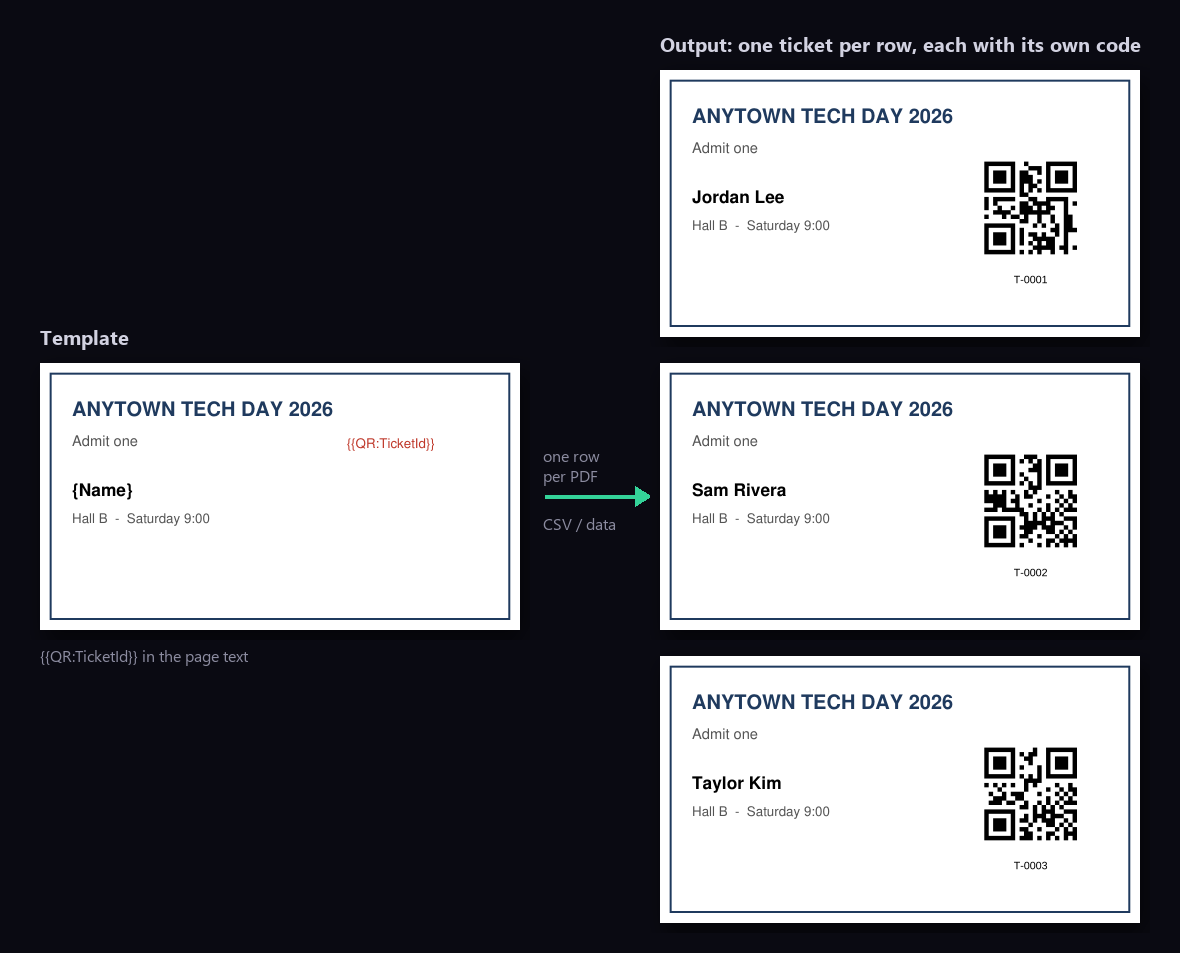
Type {{QR:TicketId}} anywhere in a template PDF and run Batch Merge with a CSV or Excel file. Every generated document gets a QR code of its own row’s value exactly where the placeholder stood — tickets, certificates with verification links, personalized letters with a portal link.
Use Cases
Where teams use batch QR codes
Legal productions: Bates + QR
Turn on Add QR code in Bates Numbering and every stamped page also carries a code with its Bates number and document ID — scan a printed exhibit to find the page instantly.
Scan-back routing of HR and intake forms
Stamp each form with an ID code before it goes out for signature. When the signed paper comes back and is scanned, the code tells your intake process whose form it is and where it belongs.
Certificates with verification links
Mail-merge a certificate template from a spreadsheet: each certificate gets a {{QR:VerifyUrl}} code that opens its own verification page.
Invoices with pay or portal links
Add a code to the first page of every invoice in a folder, built from the file name — https://pay.example.com/{FileNameNoExt} — so customers can pay from paper.
Asset and inventory labels
Generate one label per asset with its code, then use Print Layout to put many labels on each sheet, with cut guides, ready for the printer.
Frequently Asked Questions
Will adding a QR code break digital signatures?
Yes, if the file is already signed: any change to a signed PDF makes viewers report the signature as modified. Stamp the QR codes first and sign afterwards. In the Batch Pipeline, put QR Codes above Sign — the app warns you if Sign runs first.
Is the QR code an image?
No. Each code is drawn as vector shapes on an opaque white background, so it stays sharp at any zoom or print resolution, adds very little to the file size, and does not add fonts or images. PDF/A files remain PDF/A.
How much data fits in a QR code?
The QR standard tops out at about 2,900 characters, but the useful limit is lower: the more you encode, the denser the code and the bigger it must be printed. A link, an ID or a Bates number fits comfortably in a 1-inch code. The app checks every code against its print size before stamping and tells you the minimum size when content is too long.
Does it work on scanned PDFs?
Yes. The code is placed on top of the page with its own white background, so it scans the same on a scanned page as on a digital one. The {{QR:Column}} mail-merge placeholders need real text in the template, so they are for digital templates rather than scans.
Scan-ready QR codes on every PDF in one click
Per-page and per-file content, Bates integration, mail-merge placeholders, print-size checks. Complimentary 14-day trial.
Download Complimentary Trial